2 Create a Minigame
2.1 Create Minigame
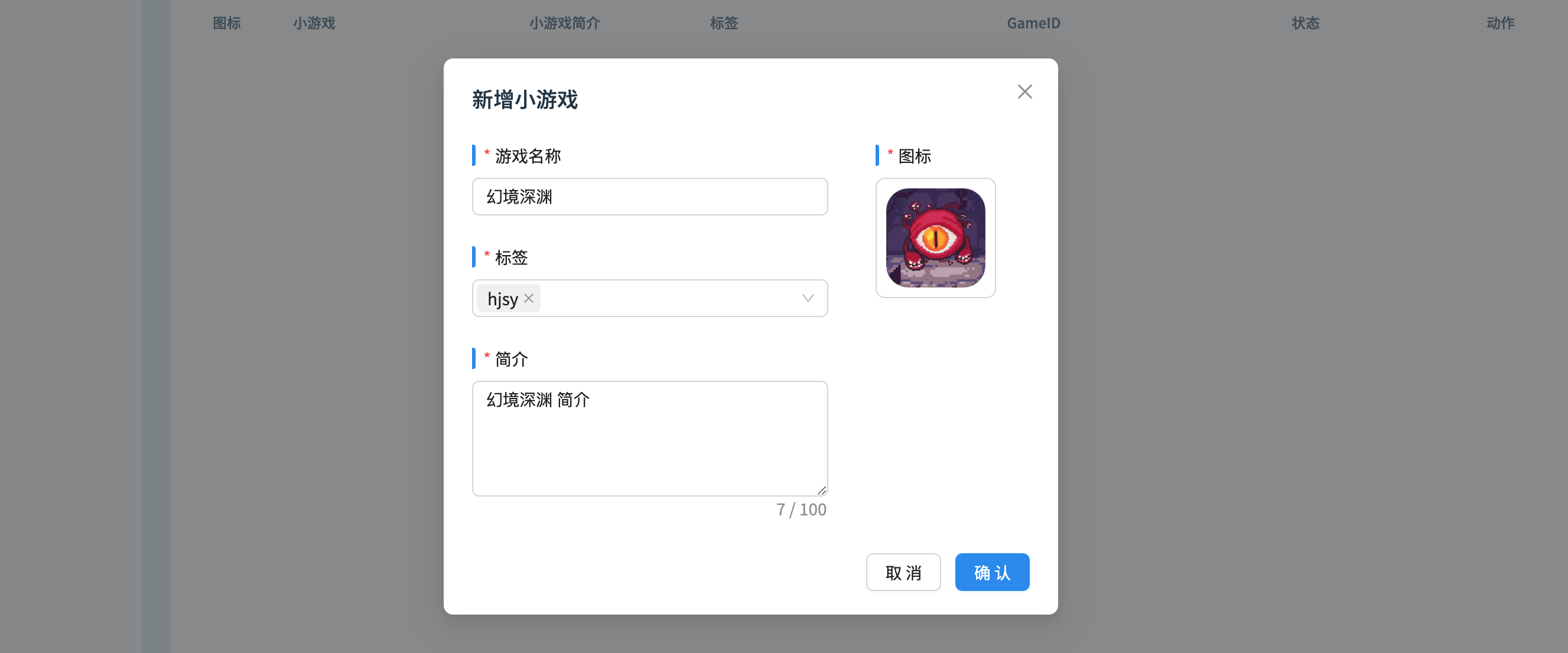
Enter Minigame page, select New Minigame (aka 新增小游戏). Fill in the Minigame name, description, select tags, and upload an icon.
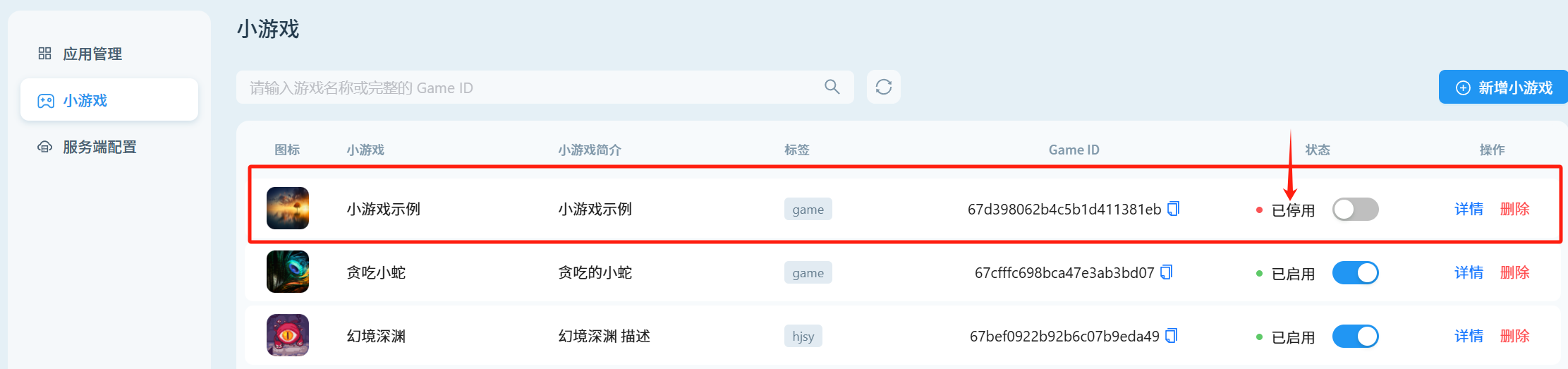
The created minigame is, by default, in the deactivated state. After the minigame is uploaded and published, it will change to the activated state.
2.2 Upload the Minigame Package
Click on the game list details (aka 详情) to jump to the minigame details page. Click Upload Code Package to select the game package to be published.
Note: The game package size cannot exceed 300 MB and must be a Compressed Packet after being zipped.
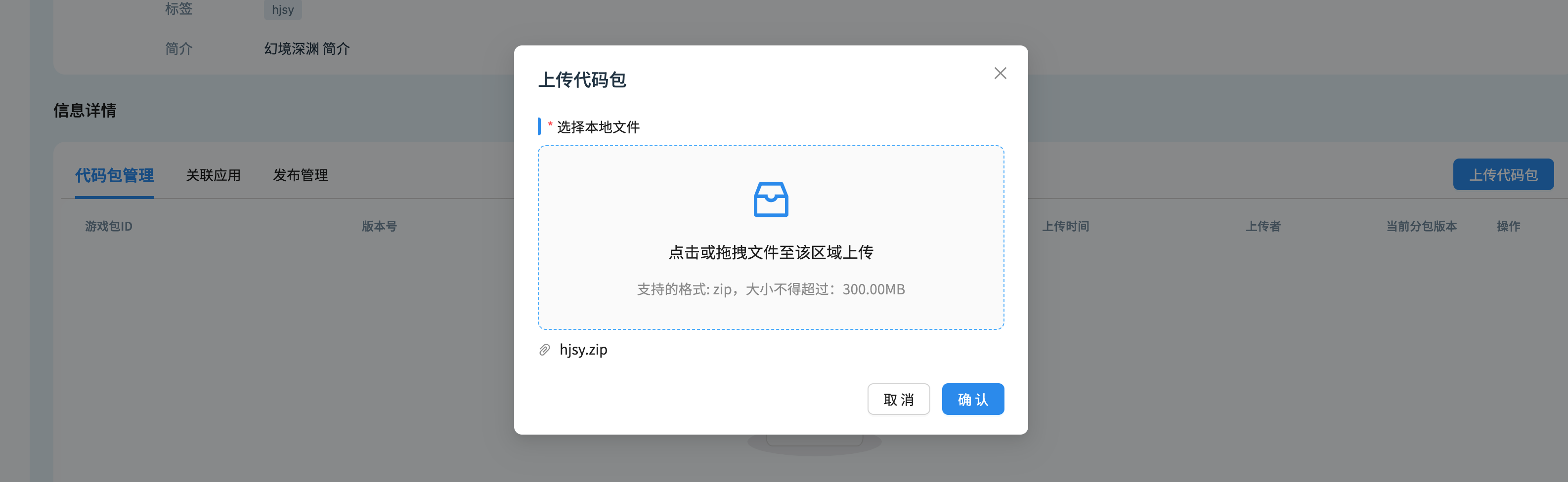
After the upload is completed, the background will verify whether the code package is available, and subsequent operations can be performed after the verification is completed.
For minigames with subpackage requirements, you can use the Subpackage Managementfeature provided by the platform.
2.3 Scan the QR Code to Experience the Game
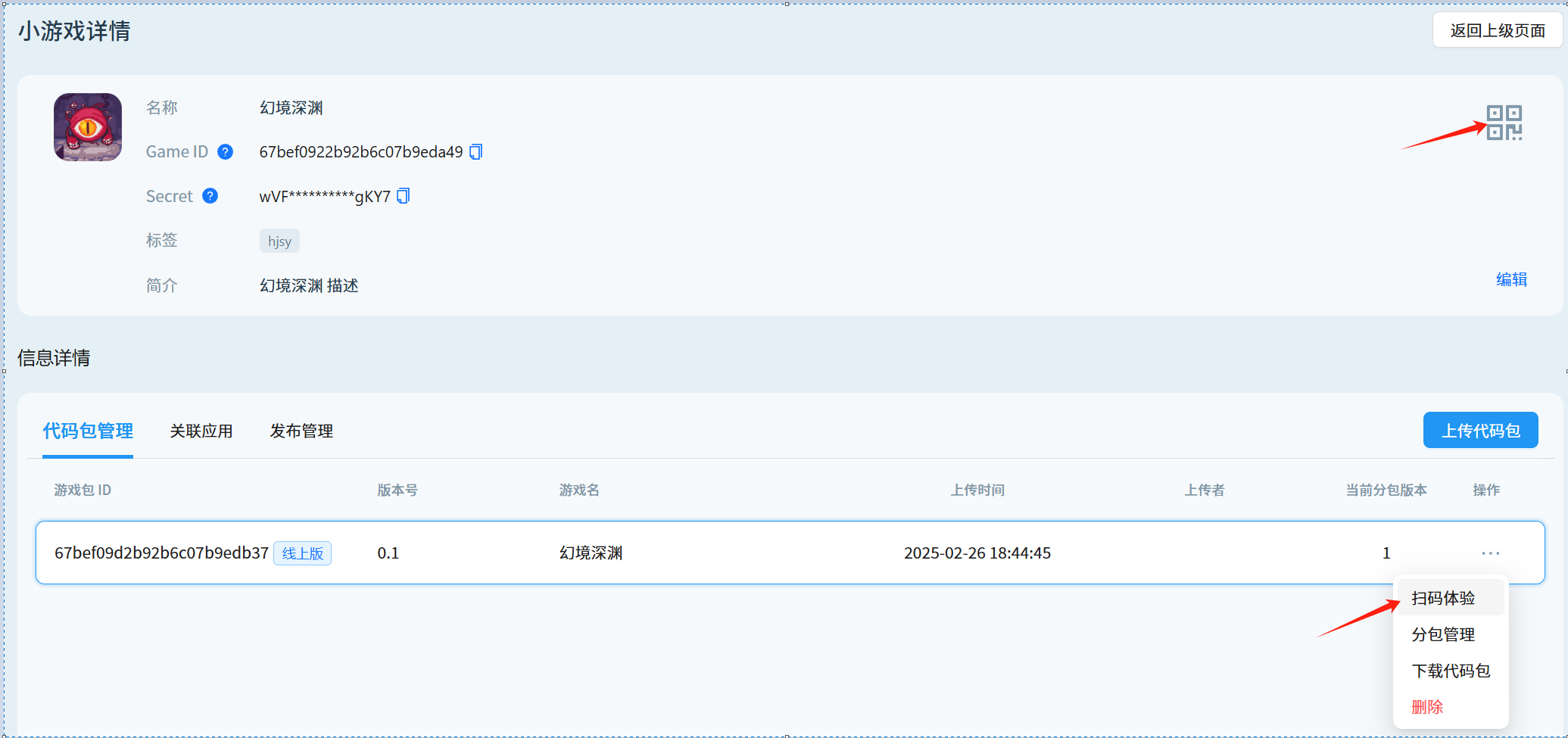
Clicking on the QR code menu can open a QR code, and developers can use applications integrated with Unity Minigame Host SDK to scan the code and run the uploaded Minigame package to experience the Minigame.
2.4 Obtain the Minigame Package
The Minigame Compressed Packet can be obtained in the following two ways:
-
Build and generate the minigame package according to the minigame adaptation plan of each engine.
-
Download the official minigame trial play package to the local device, and then upload it to the host minigame platform.
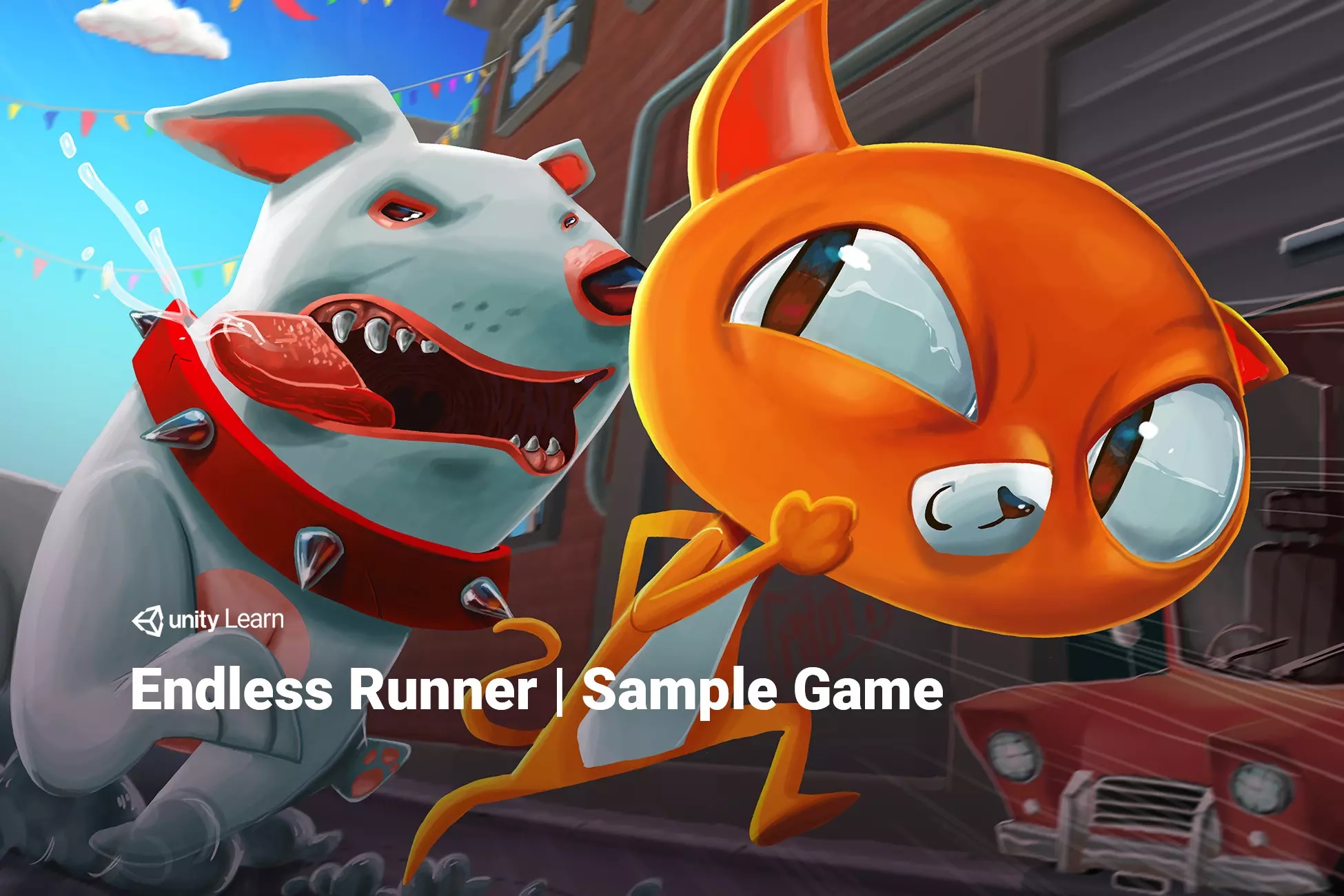 |  |
|---|---|
| Endless Runner Minigame Compressed Packet | Dragon Crashers Minigame Compressed Packet |