2 Minigame Management
2.1 Minigame
To publish a game in an app, developers need to first create the corresponding game on the platform and upload the game package. Each game can have multiple different versions of game packages uploaded. After uploading the game package, developers can manage the game's sub-packages and publishing. The game can run in the app associated with the settings.
After creating a new game, a Game ID and Secret will be automatically generated. Developers can set the status of the entire game on the minigame interface. Once set to disabled, even if there is an online game package, users will not be able to launch the game in the application.
2.1.1 Game ID
Game ID is used as an identifier for differentiation and cannot be edited. This identifier must be used in the Build Target plugin of the editor to upload the game package.
2.1.2 Secret
Secret serves as the credential for the game server to access the host platform Minigame API.
The host backend has unified the encapsulation of the platform's API capabilities, so that game-side developers only need to focus on the integration of the minigame API.
Currently, the minigame APIs supported by the host backend are as follows:
jscode2session
This interface should be called on the minigame server side.
Login credential verification. After obtaining the temporary login credential code through the tj.login interface, pass it to the developer server and call this interface to complete the login process.
Example of request:
Request Parameter Description:
| Parameter | Instructions |
|---|---|
| appid | Game ID of Minigame |
| secret | Minigame Secret |
| js_code | Code obtained during login |
| grant_type | Authorization type, here you only need to fill in authorization_code |
appid and secret can be obtained by going to "Host Backstage > Minigame > Game Details".
Response Example:
The game server needs to carry the Game ID and Secret for authentication when requesting the minigame API.
The host platform will verify the identity of the game server based on the Game ID and Secret to ensure that only legitimate game servers can access the minigame API.
2.2 Game Package
Developers can manage game packages of various versions in the Code Package Management tab.
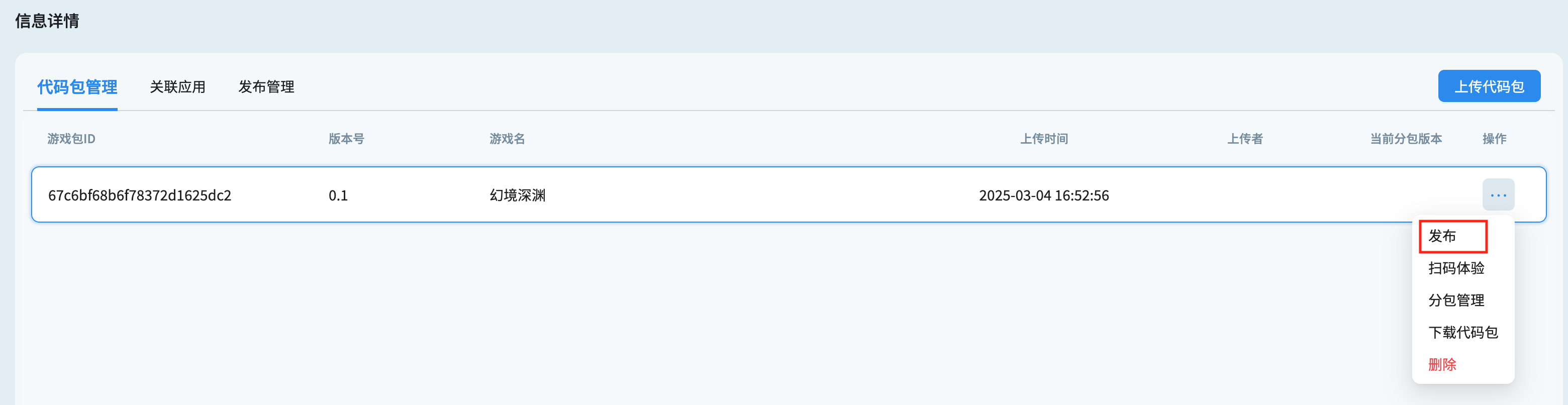
In the operation menu, developers can run the uploaded game by scanning a QR code through the host application, and can also perform game package publishing operations and subpackage operations. The option to download the code package supports redownloading the original package uploaded by the developer.
The following functions are provided for the game package platform:
-
Add, view, and delete game packages
-
Game Package Release and Launch
-
Game Package Subdivision
-
Download Game Package
2.2.1 Game Package Verification
After uploading the game package, the platform will verify it. A game package that can be published needs to meet the following conditions:
-
The size of the Compressed Packet cannot exceed 300MB
-
Needs to include the game.json file
If the platform needs to perform sub - packaging, the following conditions must be met:
-
The package must contain the webgl.wasm.symbols.unityweb file
-
needs to be converted via a plugin (in game.json, there must be a
convertScriptVersionfield)
2.2.2 Game Package Status
-
Online Version: Only games set as the online version in release management can be displayed in the host application.
-
Review Version: Games that have been published but not yet launched will not be displayed in the game list of the host application.
-
Subpackaged: A game package that has been processed to generate a subpackage version. For the subpackage steps, refer to Subpackage Management.
2.3 Associate Applications
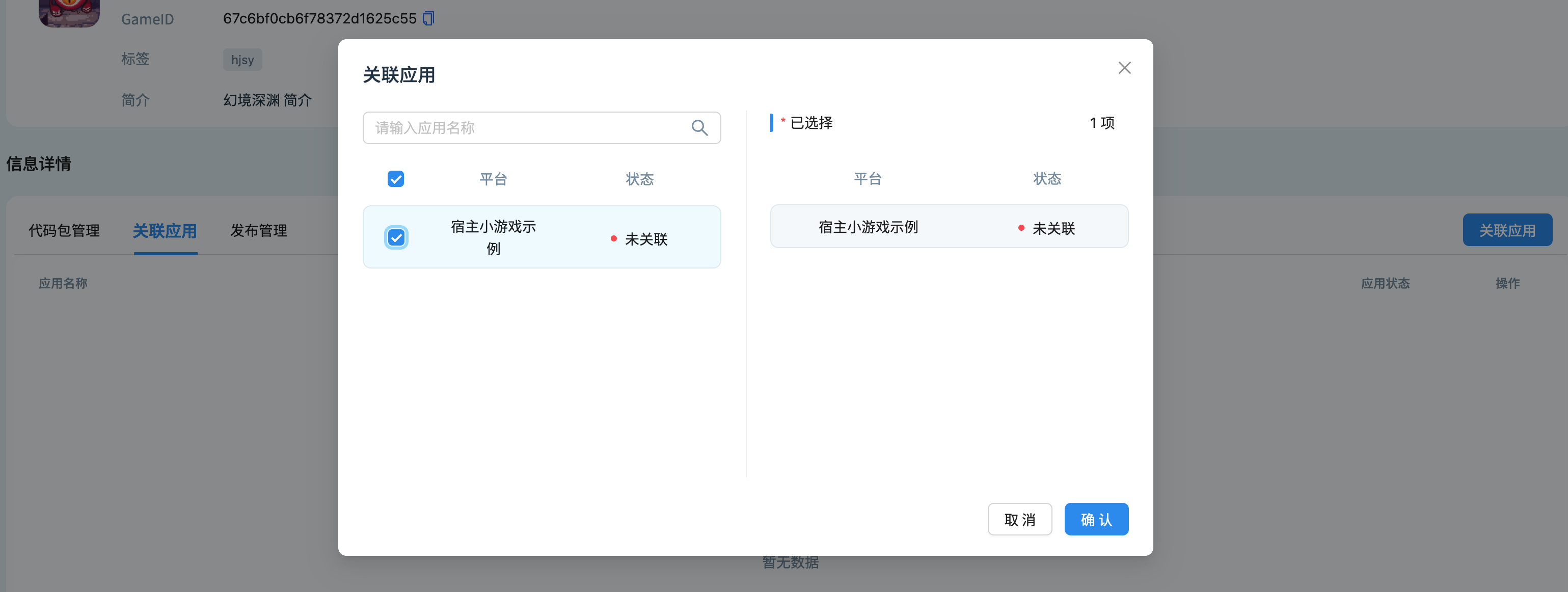
Developers need to set up the association in the associated app before users can run the game on the associated host app. The game cannot run in apps with an unassociated status.
2.4 Release Management
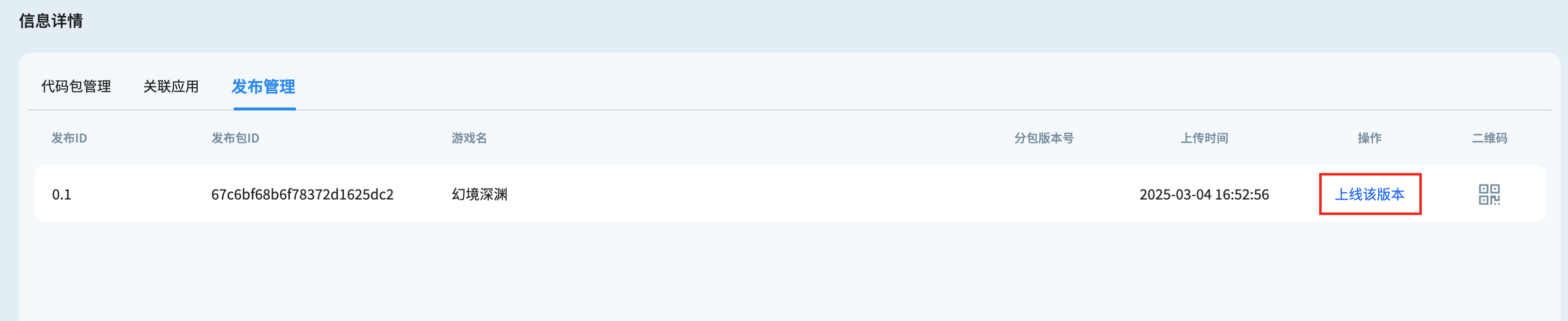
Each game version uploaded by the developer needs to be published before it can be displayed on the host platform. The version can only be used on the host platform after the developer sets it to go live in the game release management. Developers can only go live with one version at a time, and marking a version as live will clear the live status of other versions.
2.5 Operating Procedures
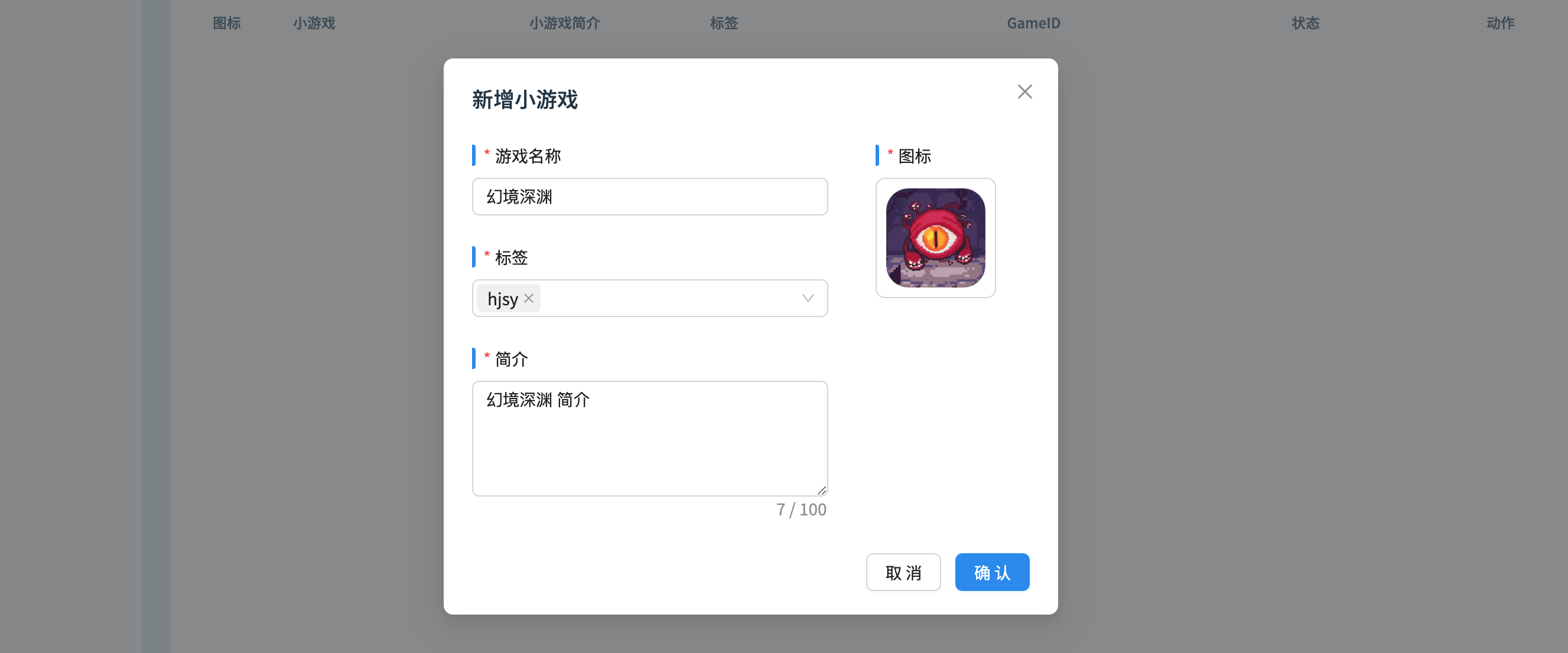
1. Click on Add New Minigame on the Minigame page to create a Minigame.
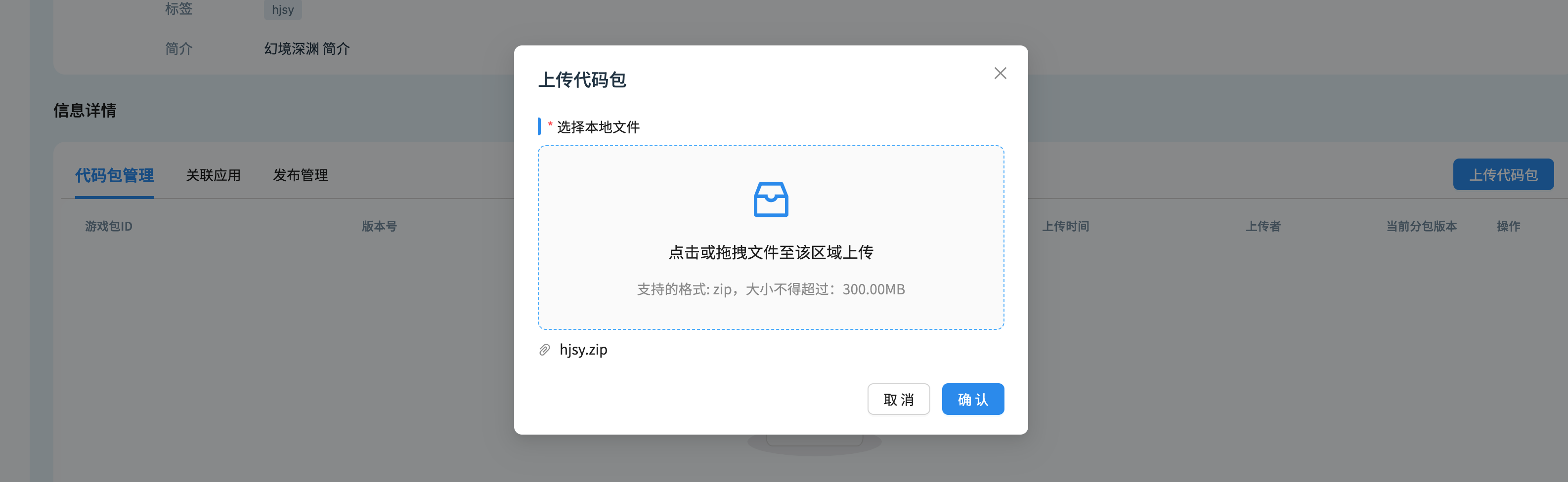
2. Click on the newly added minigame project, enter the minigame details page, and click on Upload Code Package on the Code Package Management tab to add and upload local files.
3. After uploading the code package and completing the verification, you can scan the code for experience, Subpackage Management, download the code package, and select Release in the operation bar.
4. On the Related apps tab, select Add link and add the desired associated host app.
5. In the release management tab, select release version to launch the game version, and the game can be displayed in the list page of the host application.