Unity/Tuanjie Adaptation Solution
For the Unity/Tuanjie game engine, we provide a mini-game hosting plugin. Developers can quickly package and upload their developed mini-games to the hosting platform by following these steps:
- Install Mini-Game Hosting Plugin: Install the cn.tuanjie.minihost plugin package.
- Access Platform Capabilities: Use the APIs and various open capabilities provided by the hosting platform through C# API in Unity hosted mini-games.
- Packaging and Uploading: Build the hosted mini-game package and upload it to the mini-game hosting platform.
Installing the Mini-Game Hosting Plugin
The Add Package by Name method only applies to the Tuanjie engine and the China edition of Unity Editor (the Editor version number includes a c suffix, for example, 2022.3.62f3c1 is the China edition, while 2019.3.7f1 is the Global edition). Due to the absence of the Mini-Game module, the Global version of Unity currently does not support the importation of this plugin.
0. Latest Package
You can download the latest cn.tuanjie.minihost package here.
1. Unity
In the Unity engine, click Add Package by Name in the Package Manager.
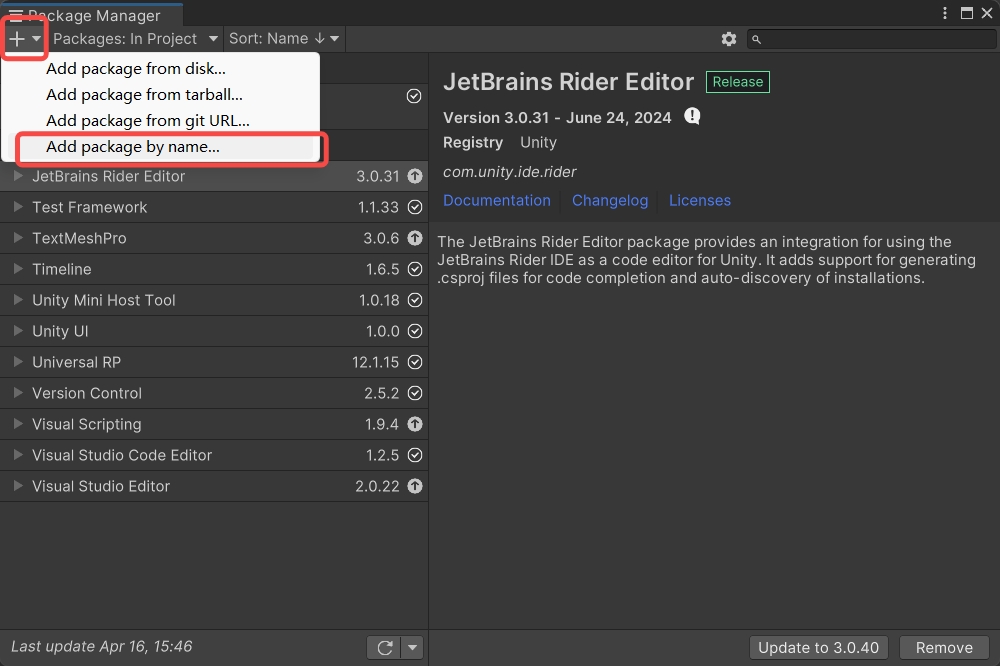
Add the cn.tuanjie.minihost plugin package.
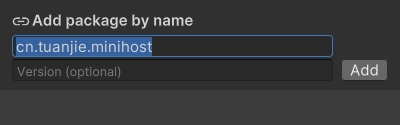
After clicking Add, the package will be downloaded and installed automatically.
After installation, you can see Unity Mini Host Tool in the Package Manager.
Note: The package supports the China edition of Unity engine versions 2021.x, and 2022.x (version numbers with a c suffix).
2. Tuanjie
Version < 1.5.0
For Tuanjie engine versions less than 1.5.0, you can add the plugin package in two ways:
-
Same as Unity engine, add the plugin package through Package Manager search
-
In Package Manager, add by entering cn.tuanjie.minihost through Add package by name
After installation, you can see the Unity Mini Host Tool in the Package Manager
Version >= 1.5.0
For version 1.5.0 and later, the mini-game hosting plugin will be automatically installed in the Tuanjie engine.
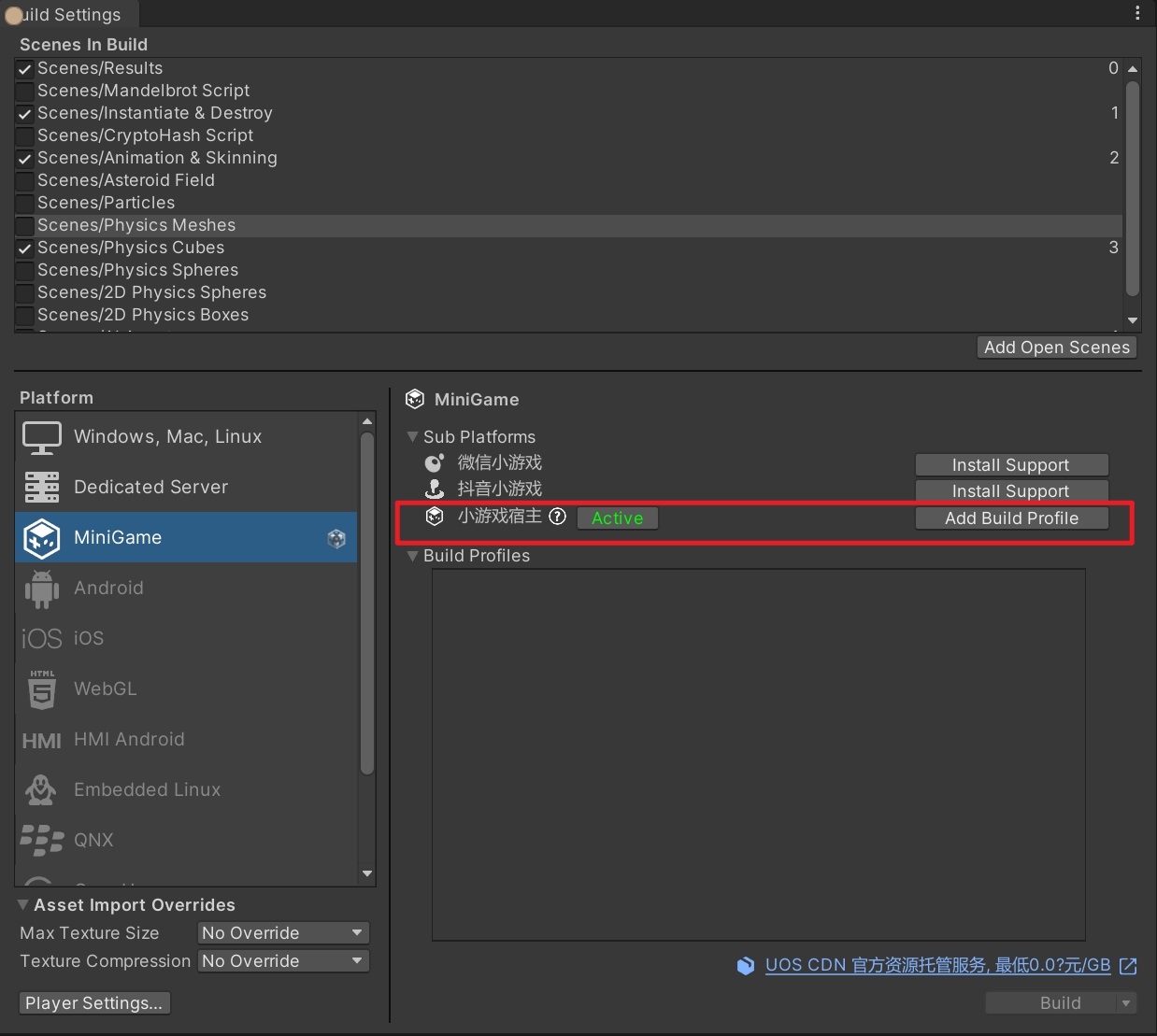
After clicking Switch Platform to switch to the MiniGame platform through File -> Build Settings, the mini-game hosting plugin will be automatically installed.
After installation, you will see the Add Build Profile button on the right side of the Build Settings window.
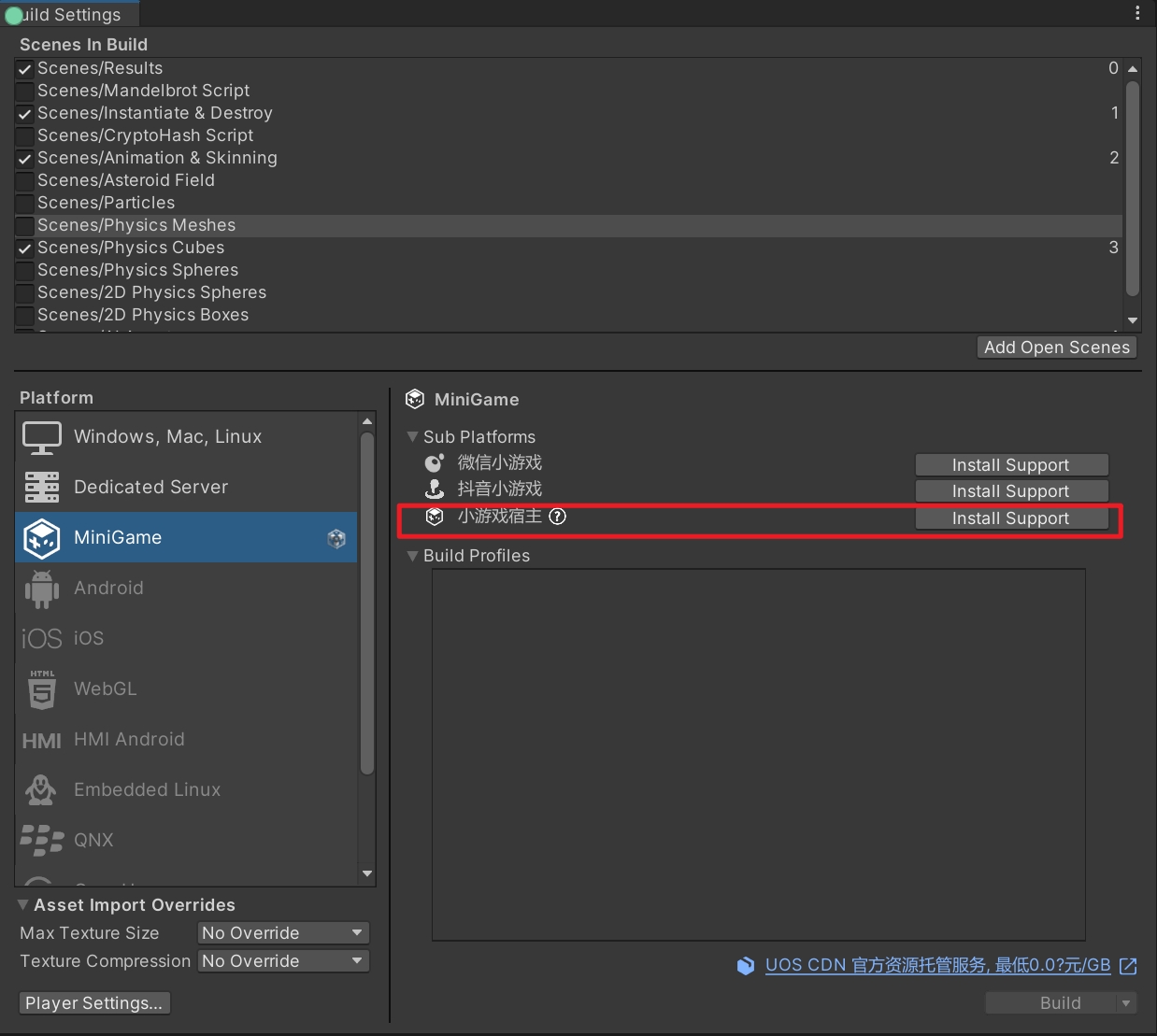
If the button on the right side of Mini-Game Host is Install Support, it indicates that the mini-game hosting plugin is not installed. You can click Install Support to download and install the plugin.
Accessing Platform Capabilities
By integrating the mini-game hosting plugin, developers can use the APIs and various open capabilities provided by the hosting platform in hosted mini-games, and flexibly integrate according to actual needs.
Supported core functions include but are not limited to:
| Function | Description |
|---|---|
| User Login | Convenient identity authentication |
| Device Functions | Storage management, vibration feedback, etc. |
| Ad Support | Easy integration of ad systems to monetize games |
The capabilities of the Unity mini-game hosting platform are consistent with WeChat mini-games, so the access method is similar. Developers can refer to the standard access process of WeChat mini-games for configuration and docking (see SDK Calling WeChat API for details).
Compared with the WeChat mini-game SDK, the Unity hosting mini-game plugin has the following differences at the C# level:
- Namespace adjustment: WeChatWASM.WX is replaced with minihost.TJ. For example, the SDK initialization API in WeChat is
WeChatWASM.WX.InitSDK, while in the Unity hosting mini-game plugin it isminihost.TJ.InitSDK - Class and function name prefix changes: All classes/functions with WX as prefix have their prefix replaced with TJ. For example, camera-related functions in WeChat are defined in the
WeChatWASM.WX.WXCameraclass, while in the Unity hosting mini-game plugin they are defined in theminihost.TJ.TJCameraclass
Developers can adjust their C# code according to the above rules. Since the Unity hosting mini-game plugin also maps the WeChat mini-game C# interfaces, developers can also continue to use the native WeChat mini-game C# API for development.
Packaging and Uploading
Creating a Mini-Game Through the Mini-Game Hosting Console
Before packaging and uploading, you need to create a new mini-game in the Mini-Game Hosting Console. The mini-game will be matched with the uploaded game through the Game ID to ensure proper association. See Creating a Mini-Game for details.
Building the Game Package
Unity and Tuanjie Versions Less Than 1.5.0
For Unity and Tuanjie engines with versions less than 1.5.0, you need to open the build window through the menu bar Mini-Game Host -> Build
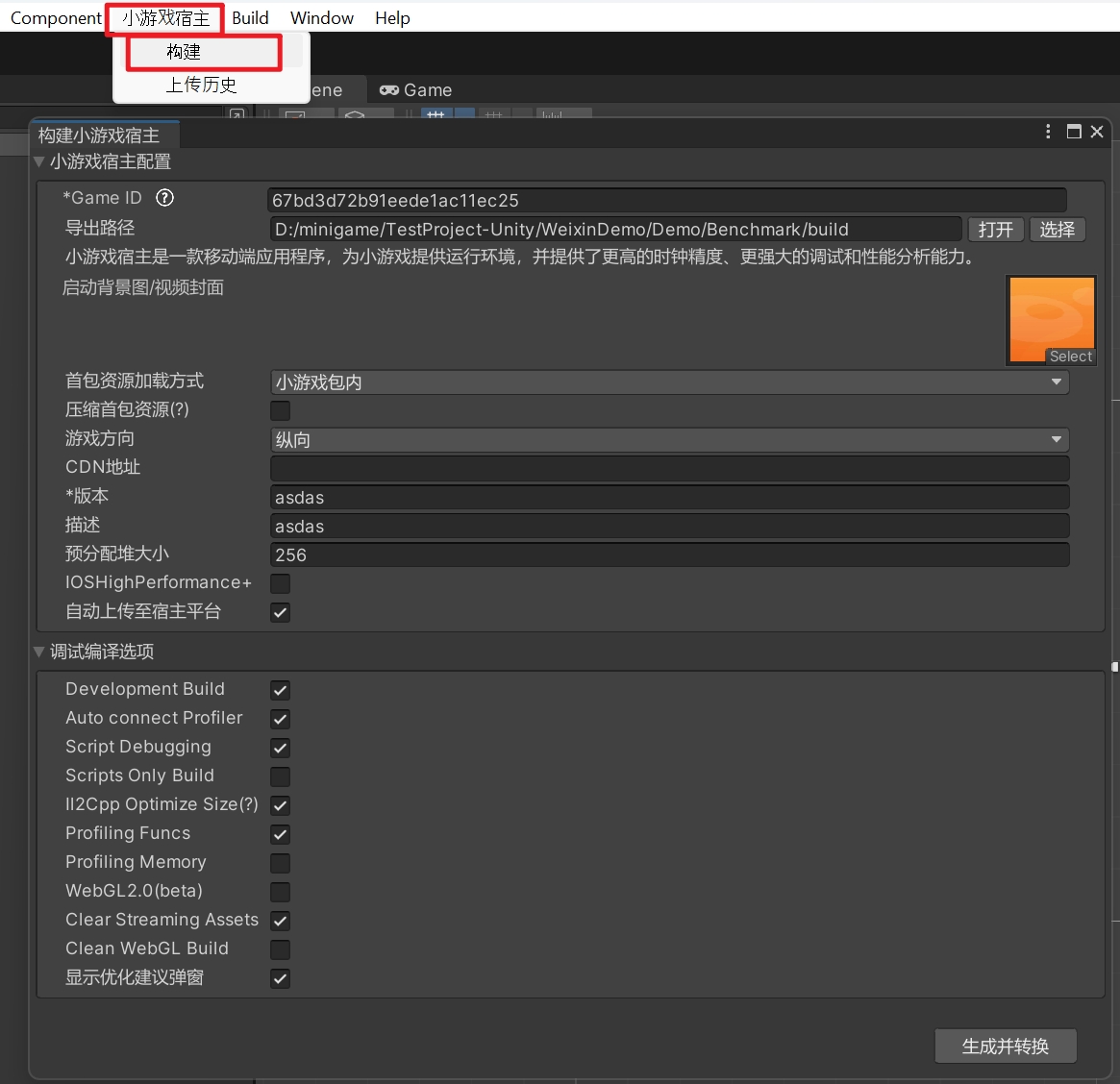
Modify the mini-game related configurations
| Configuration | Description |
|---|---|
| Game Id | Log in to the Mini-Game Hosting Console to create and view your Game ID. See Creating a Mini-Game for details. |
| Export Path | Save path for the built game package |
| Startup Background Image | Configure the game startup cover. |
| Initial Package Resource Loading Method | Within Mini-Game Package: Initial package resources are integrated in the built game package and uploaded to the hosting platform with the game package. CDN: Initial package resources need to be uploaded to CDN. |
| Compress Initial Package Resources | Whether to compress initial package resources |
| Game Orientation | Portrait or landscape. |
| CDN Address | CDN address for pulling game resources. When the initial package resource loading method is CDN, the initial package resources will also be pulled from this address. If using InstantGame AutoStreaming, this address will be automatically filled with the AutoStreaming Path in AutoStreaming. |
| Version | Game version. |
| Description | Game version description. |
| Pre-allocated Heap Size | Unit MB, pre-allocated memory value, ultra-casual games 256/light-moderate games 496/heavy games 768, need to estimate the maximum UnityHeap value of the game to prevent peak spikes caused by automatic memory expansion. |
| IOSHighPerformance+ | Whether to use Tuanjie mini-game hosting's high-performance+ rendering scheme on iOS platform, which helps improve rendering compatibility and reduce WebContent process memory. |
| Auto Upload to Hosting Platform | Whether to automatically upload the build results to the mini-game hosting platform after building. |
Click the Generate and Convert button to build
Tuanjie Versions Greater Than or Equal to 1.5.0
Starting from version 1.5.0, the Tuanjie engine added support for Build Profile. Therefore, for Tuanjie engines version 1.5.0 and later, in addition to building games through the menu bar Mini-Game Host -> Build to open the build window, you can also use Build Profile to build games. Steps are as follows:
Click the Inactive button to activate Mini-Game Host (if Mini-Game Host is in inactive state)
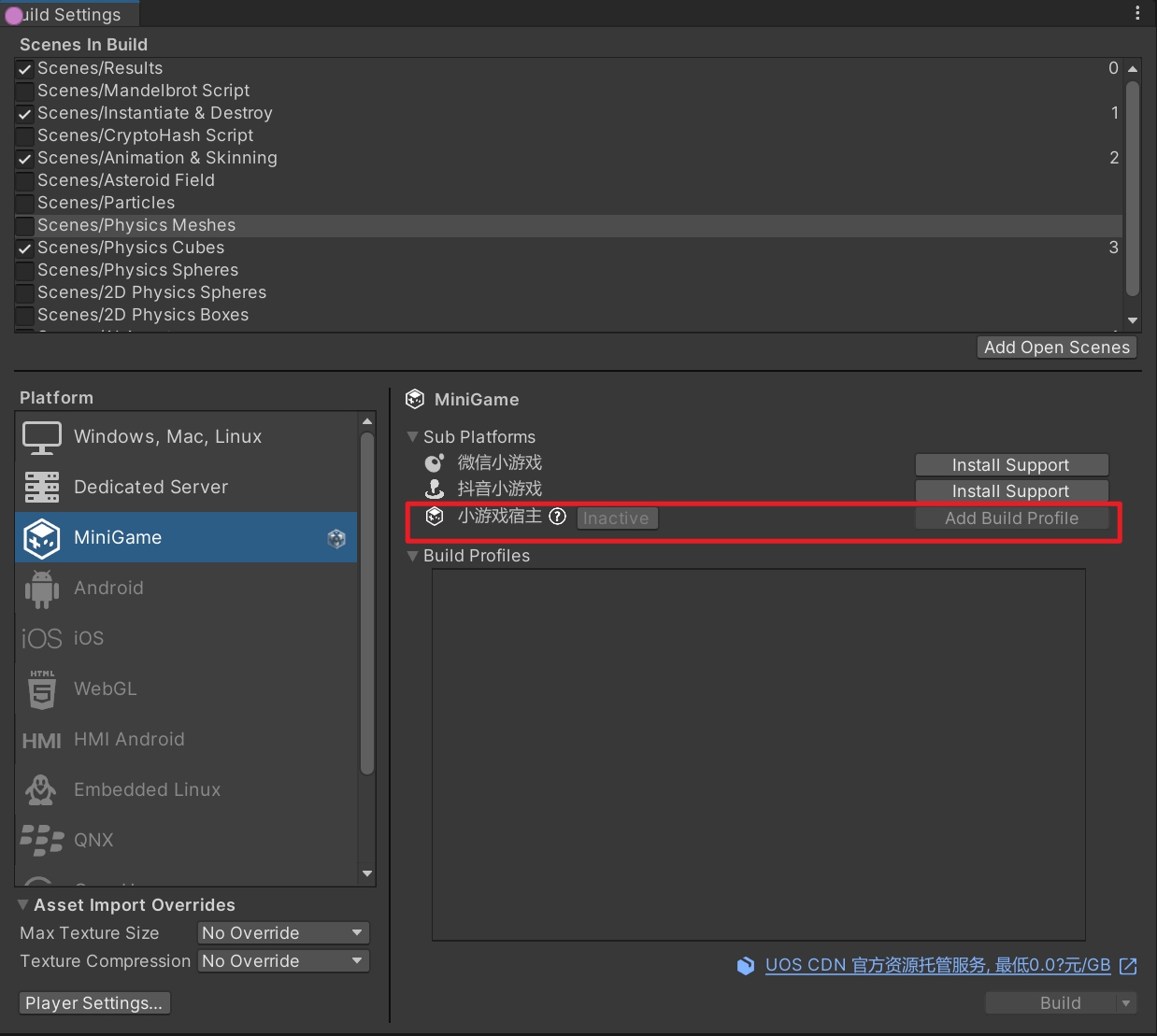
Click Add Build Profile to add the mini-game host Build Profile and check it
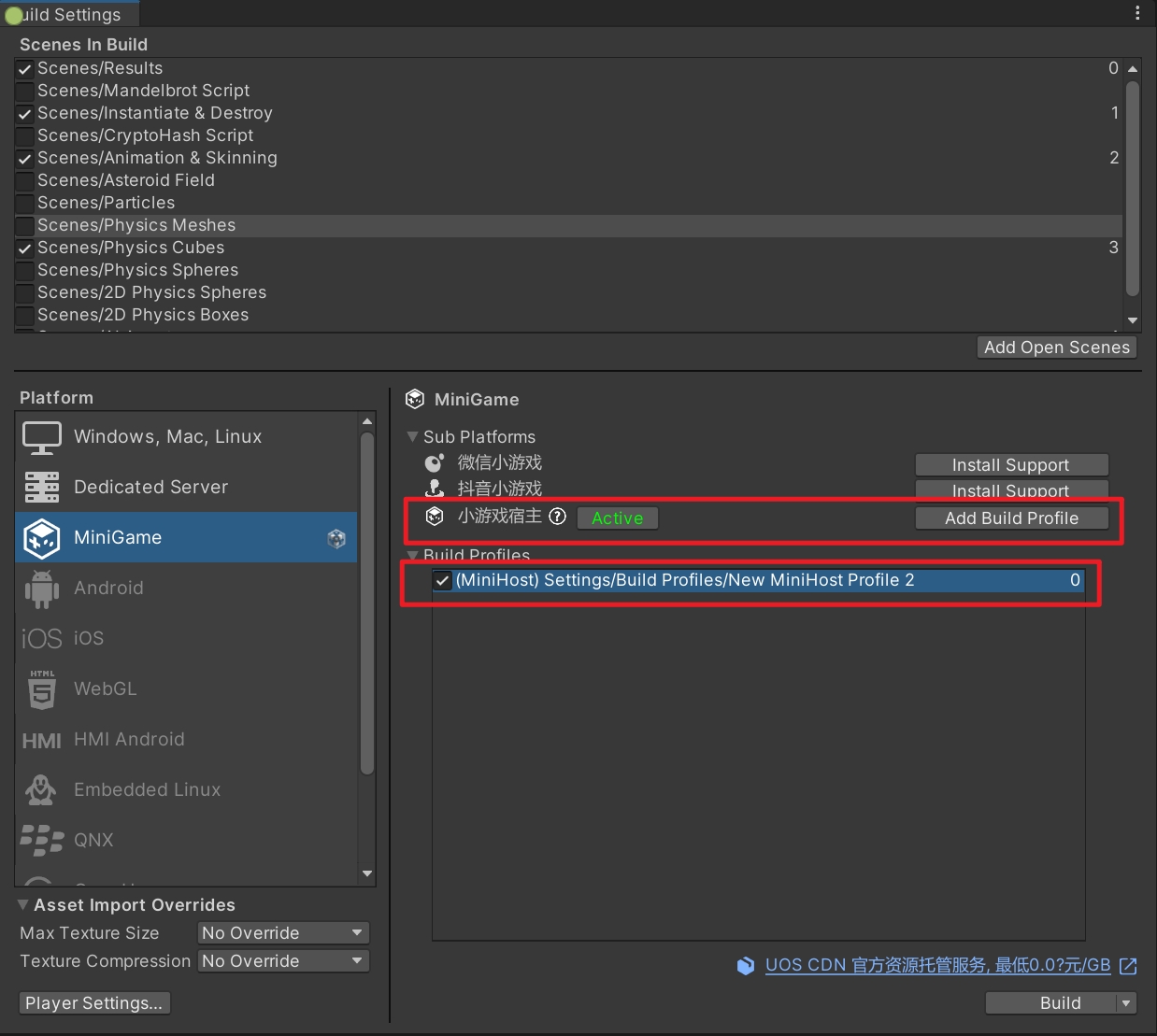
Double-click to select the created Build Profile and configure in the Inspector panel

| Configuration | Description |
|---|---|
| Game Id | Log in to the Mini-Game Hosting Console to create and view your Game ID. See Creating a Mini-Game for details. |
| Export Path | Save path for the built game package |
| Startup Background Image | Configure the game startup cover. |
| Initial Package Resource Loading Method | Within Mini-Game Package: Initial package resources are integrated in the built game package and uploaded to the hosting platform with the game package. CDN: Initial package resources need to be uploaded to CDN. |
| Compress Initial Package Resources | Whether to compress initial package resources |
| Game Orientation | Portrait or landscape. |
| CDN Address | CDN address for pulling game resources. When the initial package resource loading method is CDN, the initial package resources will also be pulled from this address. If using InstantGame AutoStreaming, this address will be automatically filled with the AutoStreaming Path in AutoStreaming. |
| Version | Game version. |
| Description | Game version description. |
| Pre-allocated Heap Size | Unit MB, pre-allocated memory value, ultra-casual games 256/light-moderate games 496/heavy games 768, need to estimate the maximum UnityHeap value of the game to prevent peak spikes caused by automatic memory expansion. |
| IOSHighPerformance+ | Whether to use Tuanjie mini-game hosting's high-performance+ rendering scheme on iOS platform, which helps improve rendering compatibility and reduce WebContent process memory. |
| Auto Upload to Hosting Platform | Whether to automatically upload the build results to the mini-game hosting platform after building. |
Click Build in Build Settings to build the project.
Uploading the Game Package
If the Auto Upload to Hosting Platform configuration is checked, the Mini-Game Host Upload Record window will automatically open after building is complete, and the built game package will be automatically uploaded to the hosting platform.
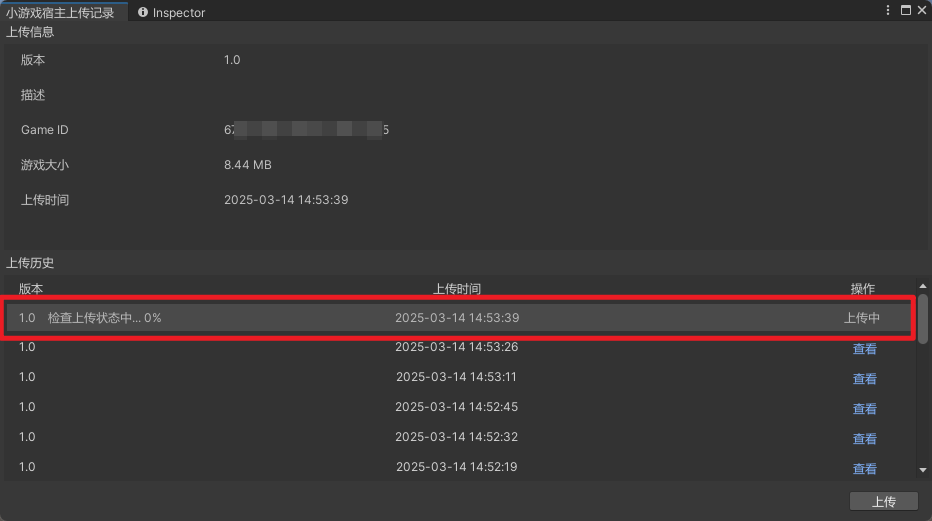
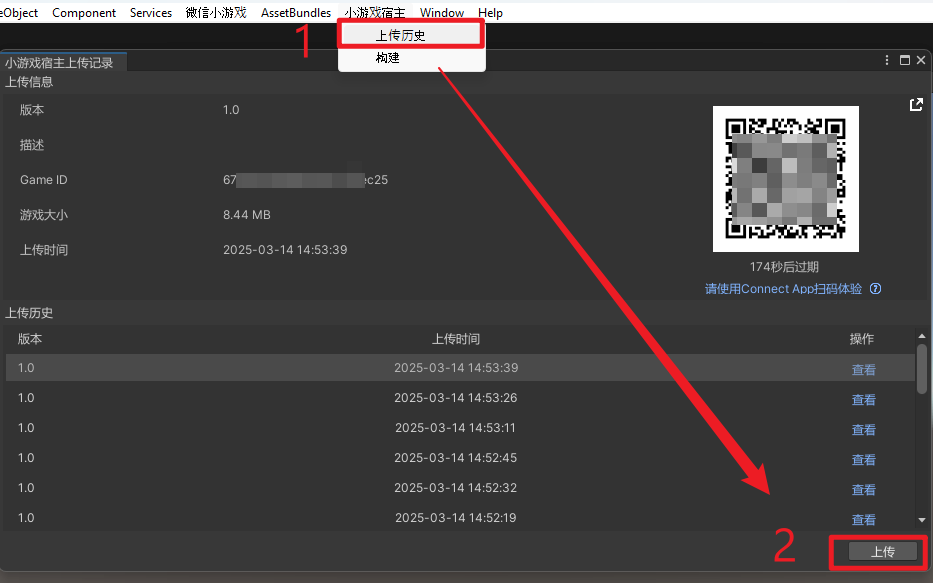
If the Auto Upload to Hosting Platform configuration is not checked, you can open the Mini-Game Host Upload Record window through the menu bar Mini-Game Host -> Upload History, and click the Upload button in the lower right corner to manually upload the built game package (located in the game.zip file in the build directory)
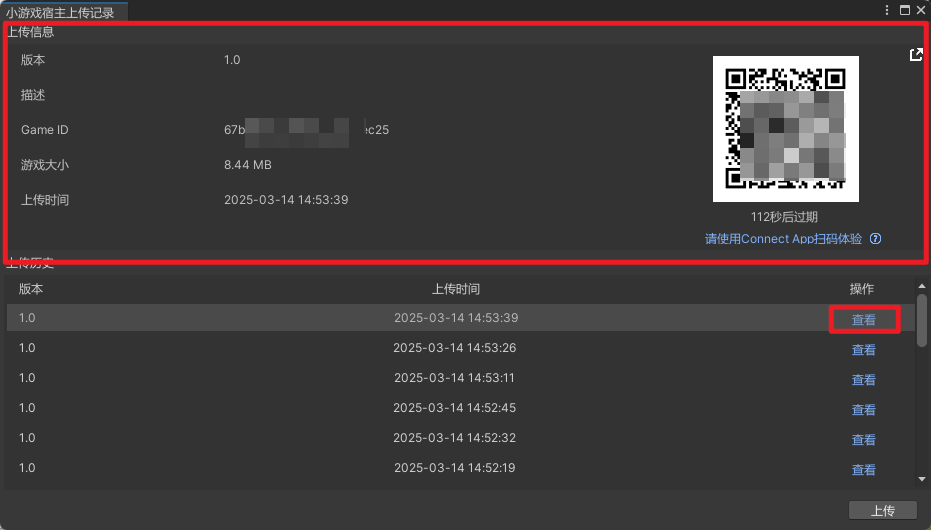
After uploading, you can click the View button to view the specific information of the uploaded game package, and experience the game by scanning the QR code on the right side of the Upload Information using Connect App.
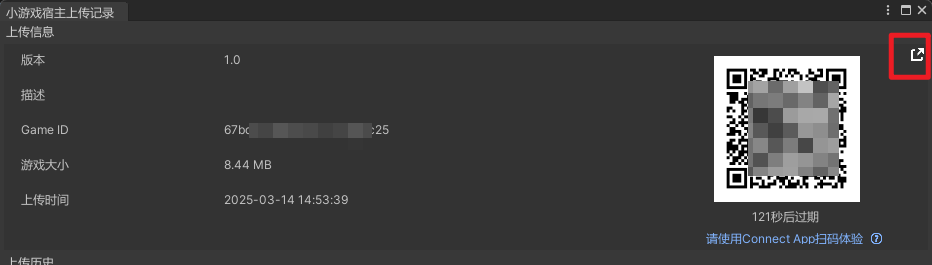
Click the icon in the upper right corner of the upload information to jump to the mini-game hosting console for that game package.
Subpackage Loading
As mini-game gameplay continues to expand, developers' demand for larger packages is increasing. To solve the loading pressure at startup, we have introduced a subpackage loading mechanism that allows game resources to be downloaded on-demand, thereby improving overall smoothness and user experience.
The essence of subpackage loading is to split game content into multiple independent packages. When players first launch the game, the system only downloads core resources (i.e., the main package) to ensure the game can quickly enter an interactive state. Other non-essential resources can be downloaded on-demand during gameplay, thus dispersing the initial loading pressure and reducing waiting time.
The Unity mini-game hosting platform provides the function of subpackaging mini-game packages uploaded to the platform.
Basic Process
-
Start subpackaging, the platform generates a collection package.
-
Run the collection package to collect initial package functions, and send data to the server.
-
Generate subpackaged mini-game packages through collected initial package functions, and automatically deploy subpackages to the CDN server.
-
After publishing, runtime data will be continuously collected to improve initial package functions.
Subpackaging needs to be operated in the Mini-Game Hosting Console. For specific steps, please refer to Subpackaging Operation Process.
Debugging and Running
Running Games by Scanning QR Codes with Connect App
Games uploaded to the Unity mini-game hosting server can be experienced by scanning the QR code with Connect App.
After the mini-game is built and uploaded, you can click the View button of the upload record in the Mini-Game Host Upload Record window to view the specific information of that upload record, and run the uploaded game by scanning the QR code on the right side of the Upload Information with Connect App.
Connect App is an official sample application that has integrated the Mini-Game Hosting SDK. Host application developers can refer to Creating Applications to assist in integrating the mini-game hosting SDK, test online game versions, and speed up docking efficiency.
Debugging Information
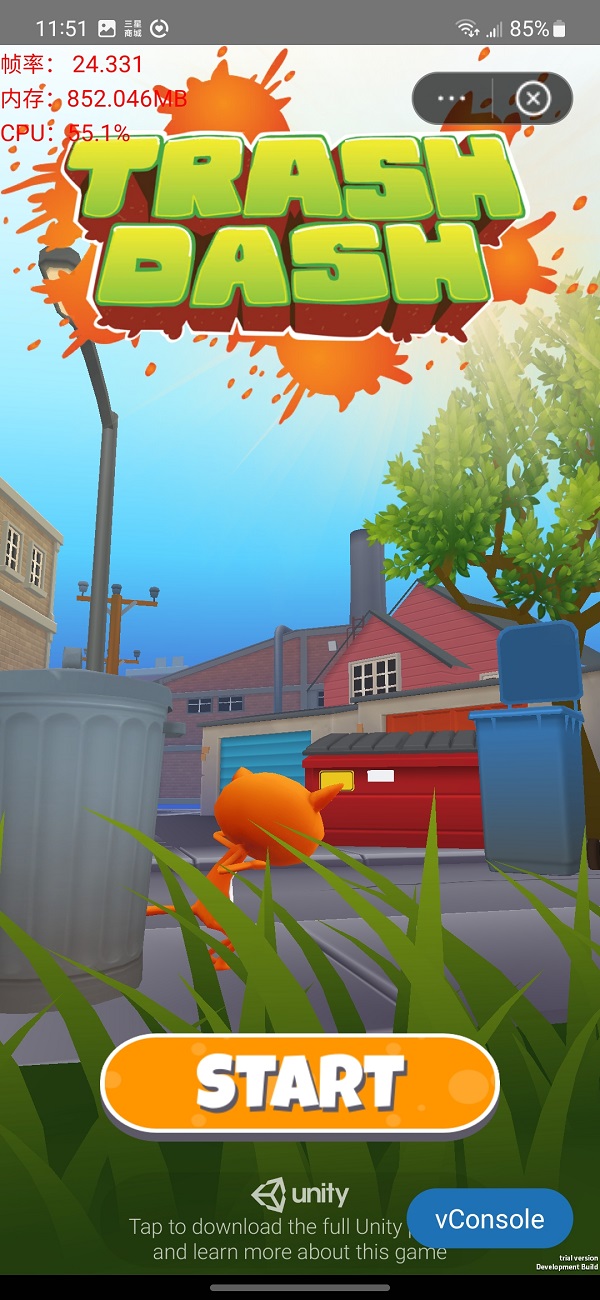
Developers can display debugging information through Menu Bar -> Development Debugging -> Open Debugging. At this time, real-time frame rate, memory, CPU and other information will be displayed in the upper left corner of the screen, and a button to open VConsole will appear in the lower right corner. Click to open.
Performance Monitoring
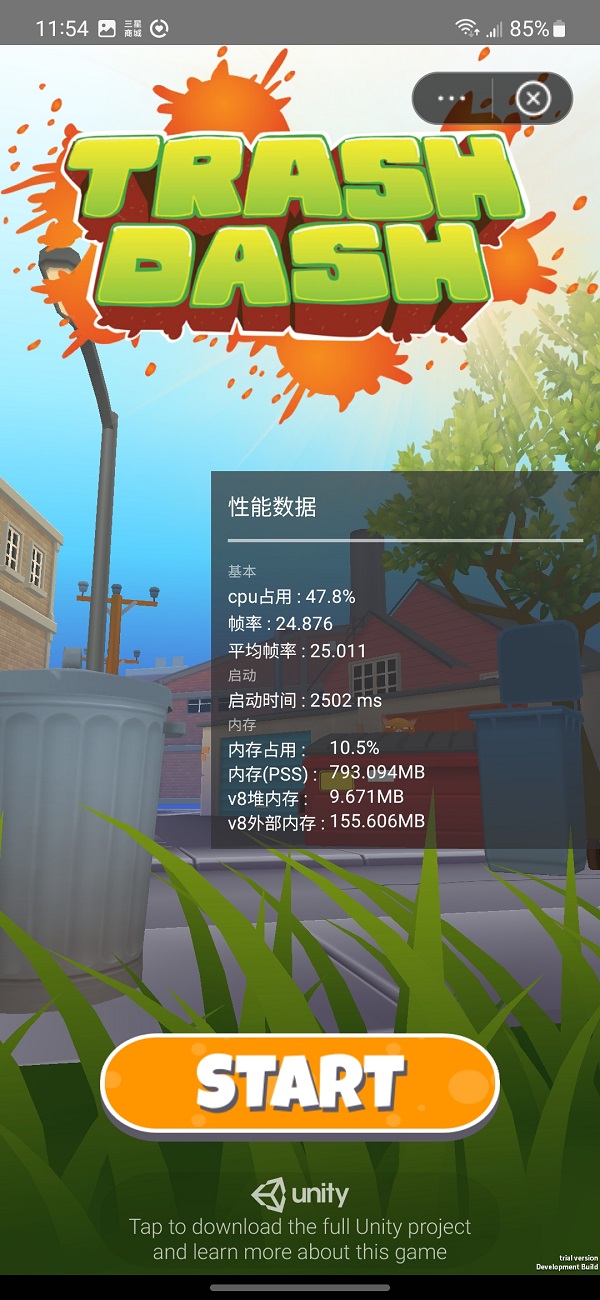
Developers can display game performance data through Menu Bar -> Development Debugging -> Open Performance Monitoring Panel.
Force GC
Developers can force v8 garbage collection through Menu Bar -> Development Debugging -> Request Force GC.
Debugging and Analysis
Developers can refer to Debugging and Analysis to optimize and troubleshoot game issues.